のカスタムジオメトリ
Geometry. Please refer to
the article on custom BufferGeometry.
前回の記事ではTHREE.jsにある基本ジオメトリであるプリミティブジオメトリを紹介しました。この記事ではカスタムジオメトリを紹介します。
まず最初に断っておきますが、本格的な3Dコンテンツを作りたい場合は 3Dモデリングツールを使うべきです。3Dモデリングツールには Blender, Maya, 3D Studio Max, Cinema4Dなどがあります。
これらのモデリングツールでモデルを作ってからgLTFや.obj にエクスポートしたものをTHREE.jsにインポートすることもできます。 どのモデリングツールも習得にそれなりの時間がかかります。
ここまで簡単なカスタムジオメトリであれば大袈裟なモデリングツールを使わずにTHREE.jsのコードで作れます。
まずは立方体を作ってみましょう。THREE.jsのBoxGeometryやBoxGeometryを使えば一発で
立方体を作れますが、簡単な例としてカスタムジオメトリで作ってみましょう。
THREE.jsにはカスタムジオメトリを作る方法が2つあります。1つ目はGeometryクラスで2つ目がBufferGeometryです。
それぞれに利点があります。Geometryは簡単に使えますが遅く、メモリをより消費します。1000個以下の三角形を作る際は
よいですが、10,000個の三角形を作る時にはBufferGeometryが良いでしょう。
BufferGeometryは使うのが難しいですがメモリの消費が小さく速いです。1万個の三角形を作る時にはこれを使いましょう。
ただし変形などがない場合はそれほど変わりません。Geometryが遅いというのはジオメトリが編集された
場合に遅いと言う意味で、もし編集が必要なくそれほど大きくなければこの両者はあまり変わりません。
この記事では両方紹介します。最初は簡単なGeometryを紹介します。
まずはGeometryで立方体を作ってみましょう。レスポンシブの記事の例を使います。
BoxGeometryを使っている部分を消してGeometryで置き換えてみます。
-const boxWidth = 1;
-const boxHeight = 1;
-const boxDepth = 1;
-const geometry = new THREE.BoxGeometry(boxWidth, boxHeight, boxDepth);
+const geometry = new THREE.Geometry();
まずは8つの角を追加してみます。

中心の周囲にこのようにvertexを追加します。(訳註:vertexとはジオメトリを構成する頂点です。3つの頂点を結ぶことでface=面ができます)。
const geometry = new THREE.Geometry();
+geometry.vertices.push(
+  new THREE.Vector3(-1, -1,  1),  // 0
+  new THREE.Vector3( 1, -1,  1),  // 1
+  new THREE.Vector3(-1,  1,  1),  // 2
+  new THREE.Vector3( 1,  1,  1),  // 3
+  new THREE.Vector3(-1, -1, -1),  // 4
+  new THREE.Vector3( 1, -1, -1),  // 5
+  new THREE.Vector3(-1,  1, -1),  // 6
+  new THREE.Vector3( 1,  1, -1),  // 7
+);
vertexを結んで三角形を作ります。1面につき2つの三角形を使います。 (訳註:立方体は6つの正方形で構成されます。1つの正方形は2つの三角形で構成されます。)
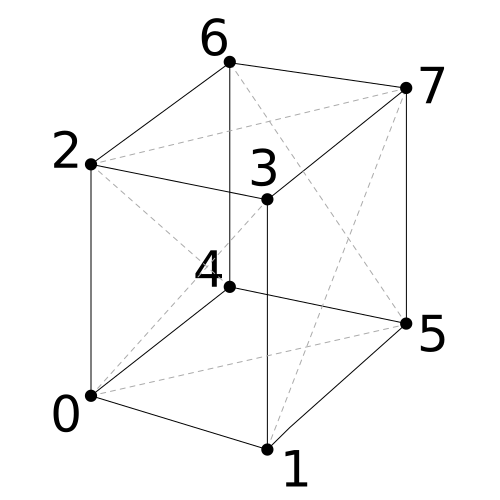
vertexを結んで三角形を作るにはFace3を使います。Face3の3は3つのvertexでfaceを作ると言う意味です。
vertexを指定する順序は重要です。faceには表面と裏面があります。立方体を構成するfaceの 面が外に向くためには反時計回りの順序でvertexを指定します。

同じように12個の三角形を作って立方体を作ります。
geometry.faces.push(
  // front
  new THREE.Face3(0, 3, 2),
  new THREE.Face3(0, 1, 3),
  // right
  new THREE.Face3(1, 7, 3),
  new THREE.Face3(1, 5, 7),
  // back
  new THREE.Face3(5, 6, 7),
  new THREE.Face3(5, 4, 6),
  // left
  new THREE.Face3(4, 2, 6),
  new THREE.Face3(4, 0, 2),
  // top
  new THREE.Face3(2, 7, 6),
  new THREE.Face3(2, 3, 7),
  // bottom
  new THREE.Face3(4, 1, 0),
  new THREE.Face3(4, 5, 1),
);
ちょっとコードを変えるだけで動きます。
これらの立方体は前に使ったBoxGeometryの立方体より2倍のサイズがあります。
全体が映るようにカメラを引きます。
const fov = 75;
const aspect = 2;  // the canvas default
const near = 0.1;
-const far = 5;
+const far = 100;
const camera = new THREE.PerspectiveCamera(fov, aspect, near, far);
-camera.position.z = 2;
+camera.position.z = 5;
わかりやすいようにそれぞれを離して色を変えます。
const cubes = [
-  makeInstance(geometry, 0x44aa88,  0),
-  makeInstance(geometry, 0x8844aa, -2),
-  makeInstance(geometry, 0xaa8844,  2),
+  makeInstance(geometry, 0x44FF44,  0),
+  makeInstance(geometry, 0x4444FF, -4),
+  makeInstance(geometry, 0xFF4444,  4),
];
この状態ではnormal(法線)がないのでライトが当たりません。 そこでライトが必要ないマテリアルに変えます。
function makeInstance(geometry, color, x) {
-  const material = new THREE.MeshPhongMaterial({color});
+  const material = new THREE.MeshBasicMaterial({color});

  const cube = new THREE.Mesh(geometry, material);
  scene.add(cube);

  ...
これで自分で作った立方体ができました。
それぞれのfaceに対してcolorを設定することで色を変えられます。
geometry.faces[ 0].color = geometry.faces[ 1].color = new THREE.Color('red');
geometry.faces[ 2].color = geometry.faces[ 3].color = new THREE.Color('yellow');
geometry.faces[ 4].color = geometry.faces[ 5].color = new THREE.Color('green');
geometry.faces[ 6].color = geometry.faces[ 7].color = new THREE.Color('cyan');
geometry.faces[ 8].color = geometry.faces[ 9].color = new THREE.Color('blue');
geometry.faces[10].color = geometry.faces[11].color = new THREE.Color('magenta');
マテリアルにはvertexColorsを使うように設定します。
-const material = new THREE.MeshBasicMaterial({color});
+const material = new THREE.MeshBasicMaterial({vertexColors: true});
vertexcolorsを設定すればvertexそれぞれに色を設定できます。
3つのvertexに対して3つの色を設定してみます。
geometry.faces.forEach((face, ndx) => {
  face.vertexColors = [
    (new THREE.Color()).setHSL(ndx / 12      , 1, 0.5),
    (new THREE.Color()).setHSL(ndx / 12 + 0.1, 1, 0.5),
    (new THREE.Color()).setHSL(ndx / 12 + 0.2, 1, 0.5),
  ];
});
ライトを適用する時はnormalが必要です。normalはfaceの向きを示すベクトルです。 色を設定したのと同じようにそれぞれのfaceにのnormalを設定します。
face.normal = new THREE.Vector3(...)
vertexNormalsでvertexに対してnormalを設定することもできます。
face.vertexNormals = [
  new THREE.Vector3(...),
  new THREE.Vector3(...),
  new THREE.Vector3(...),
]
しかしTHREE.jsに自動的にnormalを設定してもらうこともできます。
faceのnormalに対してはGeometry.computeFaceNormalsを使います。
geometry.computeFaceNormals();
vertex colorを消してマテリアルをMeshPhongMaterialに戻します。
-const material = new THREE.MeshBasicMaterial({vertexColors: true});
+const material = new THREE.MeshPhongMaterial({color});
ライトが適用できました。
vertex normalsを使うことで滑らかな表面を表現できます。
Geometry.computeVertexNormalsを設定してください。
-geometry.computeFaceNormals();
+geometry.computeVertexNormals();
ここまで説明しておいてなんですが立方体はvertex normalの例としてはあまり適切ではありません。 なぜなら1つのvertex normalがそのvertexが接する全ての面に依存しているからです。
テクスチャの座標(UVと呼ばれる)を設定するにはfacesに対応した配列を用意します。
Geometry.faceVertexUvsで設定します。
これらのテクニックを使うと以下のような立方体ができます。
geometry.faceVertexUvs[0].push(
  // front
  [ new THREE.Vector2(0, 0), new THREE.Vector2(1, 1), new THREE.Vector2(0, 1) ],
  [ new THREE.Vector2(0, 0), new THREE.Vector2(1, 0), new THREE.Vector2(1, 1) ],
  // right
  [ new THREE.Vector2(0, 0), new THREE.Vector2(1, 1), new THREE.Vector2(0, 1) ],
  [ new THREE.Vector2(0, 0), new THREE.Vector2(1, 0), new THREE.Vector2(1, 1) ],
  // back
  [ new THREE.Vector2(0, 0), new THREE.Vector2(1, 1), new THREE.Vector2(0, 1) ],
  [ new THREE.Vector2(0, 0), new THREE.Vector2(1, 0), new THREE.Vector2(1, 1) ],
  // left
  [ new THREE.Vector2(0, 0), new THREE.Vector2(1, 1), new THREE.Vector2(0, 1) ],
  [ new THREE.Vector2(0, 0), new THREE.Vector2(1, 0), new THREE.Vector2(1, 1) ],
  // top
  [ new THREE.Vector2(0, 0), new THREE.Vector2(1, 1), new THREE.Vector2(0, 1) ],
  [ new THREE.Vector2(0, 0), new THREE.Vector2(1, 0), new THREE.Vector2(1, 1) ],
  // bottom
  [ new THREE.Vector2(0, 0), new THREE.Vector2(1, 1), new THREE.Vector2(0, 1) ],
  [ new THREE.Vector2(0, 0), new THREE.Vector2(1, 0), new THREE.Vector2(1, 1) ],
);
faceVertexUvsは配列の配列によってUV座標がレイヤー状に格納されています。それぞれの配列にはUV座標が入っています。デフォルトではレイヤー数は1です。もう1つレイヤーを追加してみます。
マテリアルにテクスチャを追加 してください。
-geometry.computeVertexNormals();
+geometry.computeFaceNormals();

+const loader = new THREE.TextureLoader();
+const texture = loader.load('resources/images/star.png');

function makeInstance(geometry, color, x) {
-  const material = new THREE.MeshPhongMaterial({color});
+  const material = new THREE.MeshPhongMaterial({color, map: texture});

  const cube = new THREE.Mesh(geometry, material);
  scene.add(cube);

  ...
OKです。単純なハイトマップをterrain meshから作りましょう。
terrain meshからつくるハイトマップとは詰まるところ二次元配列です。配列の数値は高さの表現に使います。二次元配列を取得するには画像編集ソフトで適当な画像を作ってしまうのが楽です。96x96の画像を作ってみました。

このPNG画像をロードして二次元配列にしてハイトマップとして使います。
画像をロードするにはImageLoaderを使います。
const imgLoader = new THREE.ImageLoader();
imgLoader.load('resources/images/heightmap-96x64.png', createHeightmap);

function createHeightmap(image) {
  // extract the data from the image by drawing it to a canvas
  // and calling getImageData
  const ctx = document.createElement('canvas').getContext('2d');
  const {width, height} = image;
  ctx.canvas.width = width;
  ctx.canvas.height = height;
  ctx.drawImage(image, 0, 0);
  const {data} = ctx.getImageData(0, 0, width, height);

  const geometry = new THREE.Geometry();
画像から二次元配列を取り出しました。次に粗い正方形で区切られたグリッドを作ります。このグリッドはそれぞれのピクセルの中心点を四隅とした正方形で構成されています。
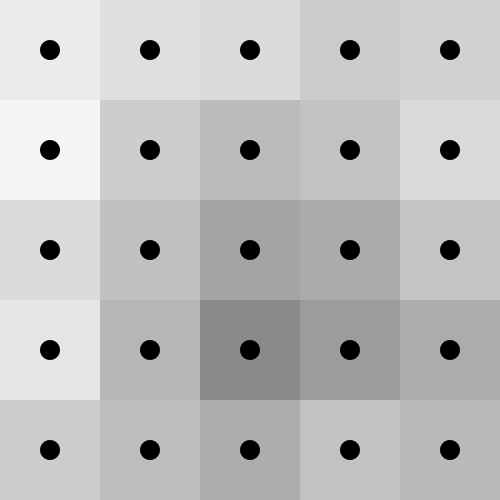
それぞれの正方形に対して5つのvertexを作ります。4つは正方形の四隅のピクセル値で、のこり1つはその四隅の平均です。
const cellsAcross = width - 1;
const cellsDeep = height - 1;
for (let z = 0; z < cellsDeep; ++z) {
  for (let x = 0; x < cellsAcross; ++x) {
    // compute row offsets into the height data
    // we multiply by 4 because the data is R,G,B,A but we
    // only care about R
    const base0 = (z * width + x) * 4;
    const base1 = base0 + (width * 4);

    // look up the height for the for points
    // around this cell
    const h00 = data[base0] / 32;
    const h01 = data[base0 + 4] / 32;
    const h10 = data[base1] / 32;
    const h11 = data[base1 + 4] / 32;
    // compute the average height
    const hm = (h00 + h01 + h10 + h11) / 4;

    // the corner positions
    const x0 = x;
    const x1 = x + 1;
    const z0 = z;
    const z1 = z + 1;

    // remember the first index of these 5 vertices
    const ndx = geometry.vertices.length;

    // add the 4 corners for this cell and the midpoint
    geometry.vertices.push(
      new THREE.Vector3(x0, h00, z0),
      new THREE.Vector3(x1, h01, z0),
      new THREE.Vector3(x0, h10, z1),
      new THREE.Vector3(x1, h11, z1),
      new THREE.Vector3((x0 + x1) / 2, hm, (z0 + z1) / 2),
    );
この5つのvertexを元に4つの三角形を作ります。

    // create 4 triangles
    geometry.faces.push(
      new THREE.Face3(ndx + 0, ndx + 4, ndx + 1),
      new THREE.Face3(ndx + 1, ndx + 4, ndx + 3),
      new THREE.Face3(ndx + 3, ndx + 4, ndx + 2),
      new THREE.Face3(ndx + 2, ndx + 4, ndx + 0),
    );

    // add the texture coordinates for each vertex of each face
    const u0 = x / cellsAcross;
    const v0 = z / cellsDeep;
    const u1 = (x + 1) / cellsAcross;
    const v1 = (z + 1) / cellsDeep;
    const um = (u0 + u1) / 2;
    const vm = (v0 + v1) / 2;
    geometry.faceVertexUvs[0].push(
      [ new THREE.Vector2(u0, v0), new THREE.Vector2(um, vm), new THREE.Vector2(u1, v0) ],
      [ new THREE.Vector2(u1, v0), new THREE.Vector2(um, vm), new THREE.Vector2(u1, v1) ],
      [ new THREE.Vector2(u1, v1), new THREE.Vector2(um, vm), new THREE.Vector2(u0, v1) ],
      [ new THREE.Vector2(u0, v1), new THREE.Vector2(um, vm), new THREE.Vector2(u0, v0) ],
    );
  }
}
仕上げです。
  geometry.computeFaceNormals();

  // center the geometry
  geometry.translate(width / -2, 0, height / -2);

  const loader = new THREE.TextureLoader();
  const texture = loader.load('resources/images/star.png');

  const material = new THREE.MeshPhongMaterial({color: 'green', map: texture});

  const cube = new THREE.Mesh(geometry, material);
  scene.add(cube);
}
すこし視点を変えるとみやすくなります。
OrbitControlsを追加してください。
import * as THREE from '/build/three.module.js';
+import {OrbitControls} from '/examples/jsm/controls/OrbitControls.js';
const fov = 75;
const aspect = 2;  // the canvas default
const near = 0.1;
-const far = 100;
+const far = 200;
const camera = new THREE.PerspectiveCamera(fov, aspect, near, far);
-camera.position.z = 5;
+camera.position.set(20, 20, 20);

+const controls = new OrbitControls(camera, canvas);
+controls.target.set(0, 0, 0);
+controls.update();
ライトも2つ入れましょう。
-{
+function addLight(...pos) {
  const color = 0xFFFFFF;
  const intensity = 1;
  const light = new THREE.DirectionalLight(color, intensity);
-  light.position.set(-1, 2, 4\);
+  light.position.set(...pos);
  scene.add(light);
}

+addLight(-1, 2, 4);
+addLight(1, 2, -2);
立方体を回転を止めました。
Geometryの使用方法をおわかりいただけたでしょうか?
この記事ではBufferGeometryについて説明します。