Level Tree
The Level Tree shows a hierarchical view of the objects in the current Level. Use it to inspect structure, organize items, and perform common actions such as duplicating, renaming, and saving Units as prefabs.
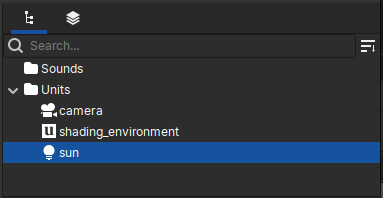
The Level Tree showing some Units in a Level and an empty Sounds folder.
Saving Unit prefabs
Right-click any Unit in the tree and choose Save as Prefab.... In the file
dialog that opens, pick a unique name for the prefab and click Save. The
command creates a reusable prefab resource you can place in other Levels.
Renaming objects
Objects receive an automatic name when created. To give an object a clearer
name, right-click it in the Level Tree and choose Rename... from the
context menu. Descriptive names are useful when you need to refer to objects
by name from gameplay code.
Searching and sorting
Use the Search Bar at the top of the Level Tree to find objects by name. Begin
typing and matching objects appear instantly; press Esc to exit search
mode. The button to the right of the Search Bar let you choose the sorting
criteria to change how items are ordered in the tree.