Project Browser
The Project Browser is where you view and manage the files and resources that make up your project. From here you can create or import new resources, open them, organize folders, and pin favorites for quick access.
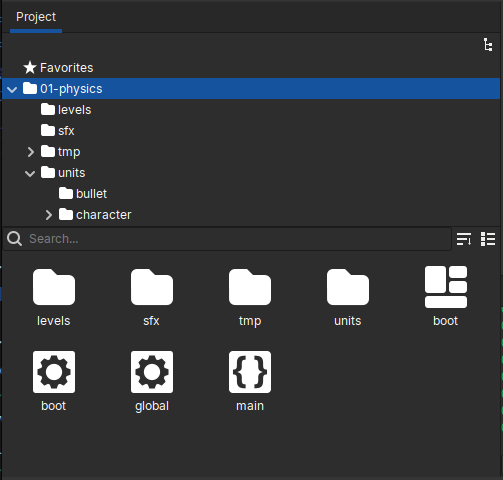
The Project Browser showing folders and resources.
Overview
By default the Project Browser is split into two panes. The top pane shows a tree view of the project folders. The bottom pane, called the Folder View, displays the contents of the currently selected folder.
If you prefer a single unified view that shows files and folders together, click the small tree icon at the top-right to toggle the layout mode:
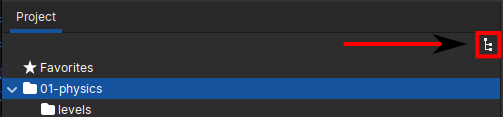
The layout toggle in the Project Browser.
Folder View
The Folder View presents the resources inside the selected folder. You can switch between a icon view and a compact list view using the button at the top-right of the Folder View:

Switching between icon and list views in the Folder View.
Resources such as units, materials, textures and other graphical content use thumbnails that show how they will appear at runtime. Other resource types use a simple icon.
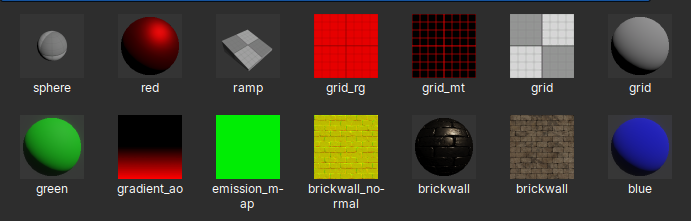
Thumbnail previews for graphical resources in the Project Browser.
Thumbnails generated in Crown are saved in a dedicated OS location so they can be used by other programs such as the file manager.
Files visibility
To keep the Project Browser uncluttered, the UI normally hides auxiliary files
and shows resources as a single item with trimmed extension. For example, a
texture resource on disk consists of the original image file plus a generated
.texture resource file; the browser shows them as one combined
.texture item. Similar grouping applies to other resource types.
When you need to inspect the actual files on disk use the button immediately to the right of the Search Bar to toggle visibility options:

The visibility and sorting controls in the Project Browser.
With the same popup you can also control how the items should be sorted.
Searching
The Project Browser offers fast project-wise searching based on keywords.
Start typing in the Search Bar and matching results appear as you type. Press
Escape to exit search mode. The Search Bar position may move depending on
the current view mode (icon view or tree view), but the search behavior
remains the same.
Search context
By default the search covers the project itself (i.e. the main source dir). If
your project includes mapped source directories, those are excluded from
search results unless you enable them explicitly by checking Show mapped
dirs in the visibility controls.