Texture Settings
The Texture Settings dialog lets you customize how Crown processes a texture for each target platform. To open it, double-click a texture in the Project Browser; Crown will display a dialog similar to this:

The Texture Settings dialog.
Overview
On the left, the Target Platform list shows the platforms you can
configure. Select one or more platforms to edit their settings
simultaneously. Use Left Ctrl to select or deselect multiple entries.
After selecting platforms, the settings on the right update to reflect the current values. If the selected platforms have different values for a given option, a dash symbol (—) appears to indicate the inconsistency:
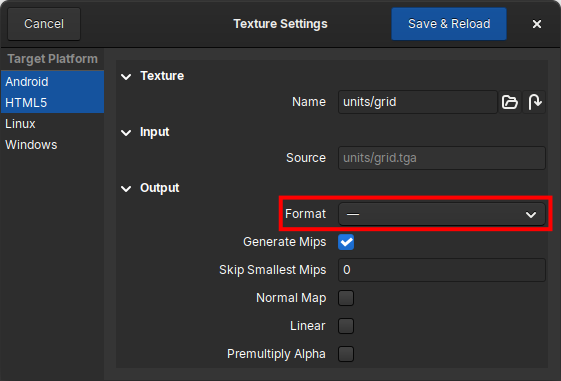
Inconsistent format values indicated by a dash symbol.
Output
Output settings control how Crown processes the source image into GPU-ready assets. These settings are applied per platform so you can accommodate each platform’s performance and form-factor constraints.
Format
Choose the output format appropriate for the texture type and platform:
BC1: RGB color with 1-bit alpha; good for opaque color maps.BC2: RGB color with 4-bits alpha.BC3: RGB color with full alpha.BC4: Single-channel (grayscale); useful for heightmaps, font atlases etc.BC5: Two-channel BC4 useful for tangent-space normal maps.PTC14: RGB compressed format.RGB8: Uncompressed RGB (8-bits per channel).RGBA8: Uncompressed RGBA (8-bits per channel).
For a technical reference on BCn formats, see Understanding BCn Texture Compression Formats.
Mip-mapping
Control mipmap generation with these options:
Generate Mips: enable or disable automatic mipmap generation.Skip Smallest Mips: skip generation of the N smallest mip levels to save space.
Other flags
Normal Map: mark the texture as a normal map. This implies linear color processing.Linear: treat the source as linear data. By default textures are interpreted as sRGB and are converted to linear space during processing; enableLinearfor data textures such as normal maps, LUTs etc.Premultiply Alpha- premultiply RGB by alpha before encoding. See here and here for details.
Saving changes
When you are finished, click the Save & Reload button at the top right.
Crown saves the .texture resource, compiles it for the affected
platforms, and reloads the texture in all viewports and in the running game
if any.